Before You Begin
We recommend that you explore NOAH yourself before introducing it to your child. Spend a few minutes tapping the animals, listening to the melodies, and trying the composition feature. This will give you the confidence to guide your child's first experience.
Opening NOAH
- Tap the Open NOAH button on our website, or go directly to the app in your browser.
- NOAH will load full-screen on your device. You'll see seven large animal play pads at the bottom.
- That's it — you're ready to make music.
The Play Pads
The bottom of the screen shows seven animal characters. Each one represents a musical note:
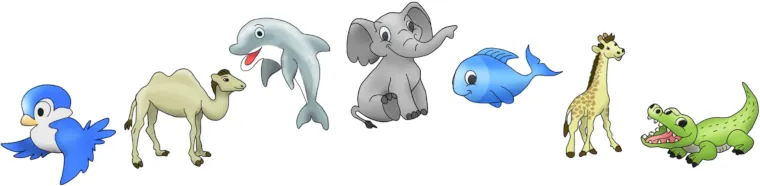
- Bird — plays the B note
- Camel — plays the C note
- Dolphin — plays the D note
- Elephant — plays the E note
- Fish — plays the F note
- Giraffe — plays the G note
- Alligator — plays the A note
Let your child tap freely. There are no wrong notes — every animal produces a real musical tone.
The Composition Module
Above the play pads, you'll see the composition module — a row of smaller animal icons. This is where melodies are built.

Generating a Melody
Press the octopus button (upper right) to generate a random seven-note melody. Each note appears as a small animal icon in the composition module.
Changing Notes
- Up arrow — tap to raise the note (makes it higher)
- Down arrow — tap to lower the note (makes it lower)
Your child can experiment with changing notes and hearing how it affects the melody. This is where real musical understanding begins.
Playing Back Melodies
Two buttons control playback speed: a rabbit for normal speed and a turtle for slow practice.
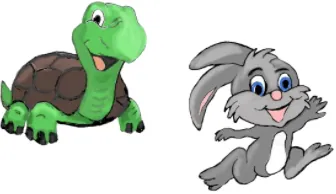
During playback, the animal characters animate — your child can see which note is playing in real time. Start with the turtle speed, and switch to the rabbit once your child is comfortable.
Show Note Names
When your child is ready to connect animals with letter names, tap the ABC button in the upper left corner. This displays the note names (B, C, D, E, F, G, A) alongside the animal play pads.
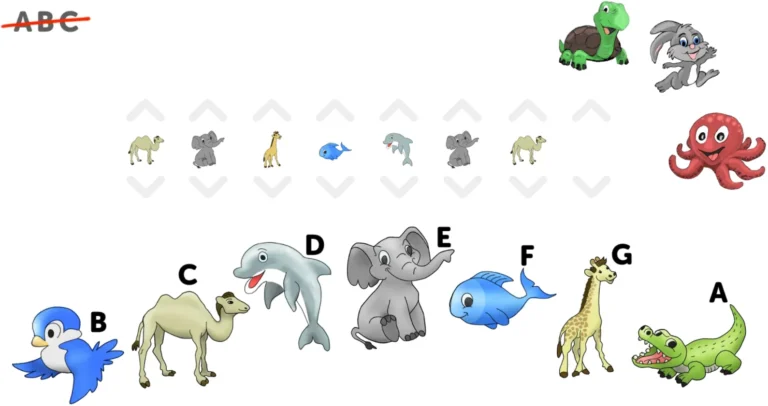
Don't rush this step. The animal symbols are what make NOAH accessible to pre-readers. Reveal the note names when your child shows curiosity — not before.
Tips for Parents
Follow Your Child's Lead
Some children will tap animals randomly and love the sounds. Others will try to copy melodies. Both approaches are valid. Let your child explore at their own pace.
Make It a Duet
Sit with your child and take turns. You play a three-note sequence, they copy it. Or you play a melody together — one animal each. Music is social, and NOAH works best when you play together.
Use the Slow Button
The turtle speed is your best friend. When your child is learning a new melody, slow it down. They can follow each note visually and match it on the play pads.
Celebrate Compositions
When your child creates a melody — even a random one — treat it as a composition. Ask them to play it again. Give it a name. This builds confidence and a sense of ownership over their music.